
Beanstack is the easiest way to keep track of all the books you read. When you create a Beanstack account for yourself or your family, you’re instantly connected to the C. E. Brehm Library’s reading programs, so you’ll get credit for every minute and every page. We’ll keep all your stats for you, cheer you on while you work towards your program goals, and let you know when you’ve earned prizes. When your library’s program ends, you keep your account, and your reading history—it’s always free, and you can keep right on logging your leisure reading. When the next library program comes around, there is no need to re-register — simply select it, and you’re in.


Beanstack Website Instructions
Challenge Registration
- Select Register as an Individual or Family to get started.
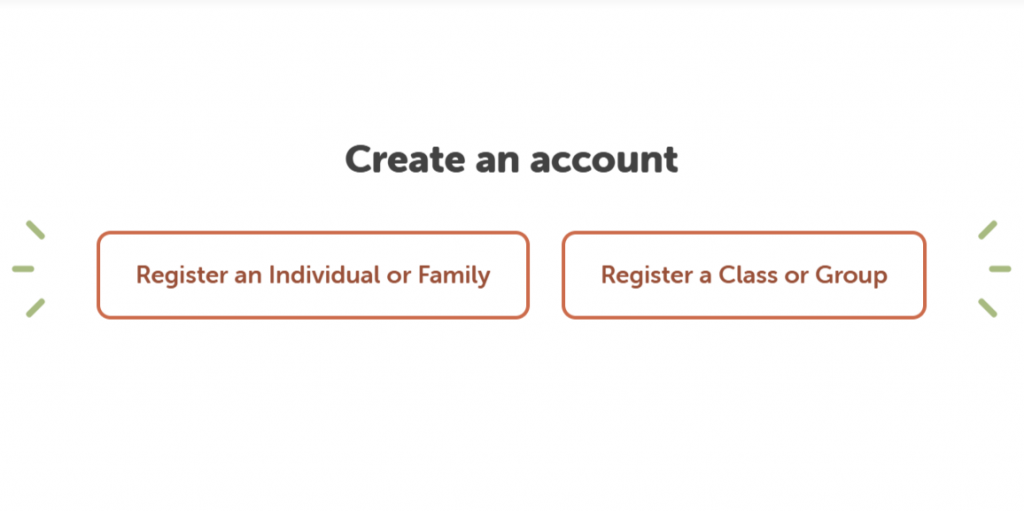
- Select I am Registering Myself and fill out the form.
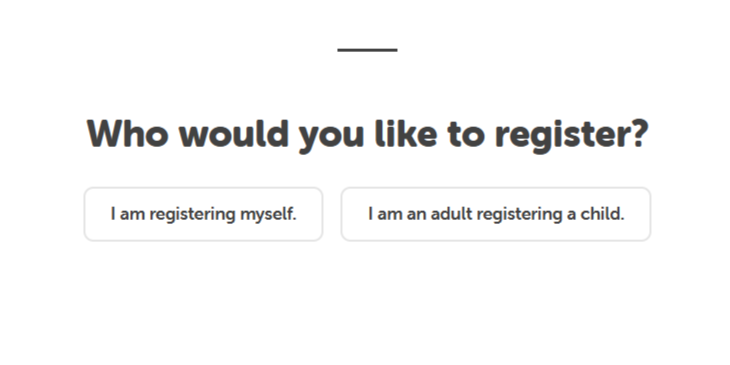
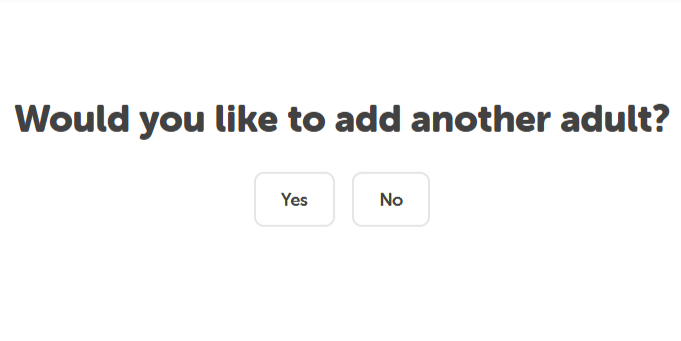
- Once you are registered as a user, choose whether to register another adult or a child.
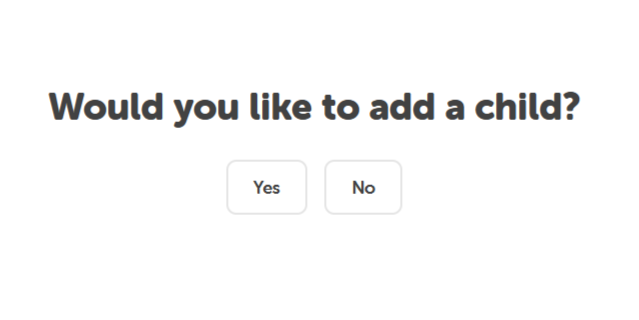
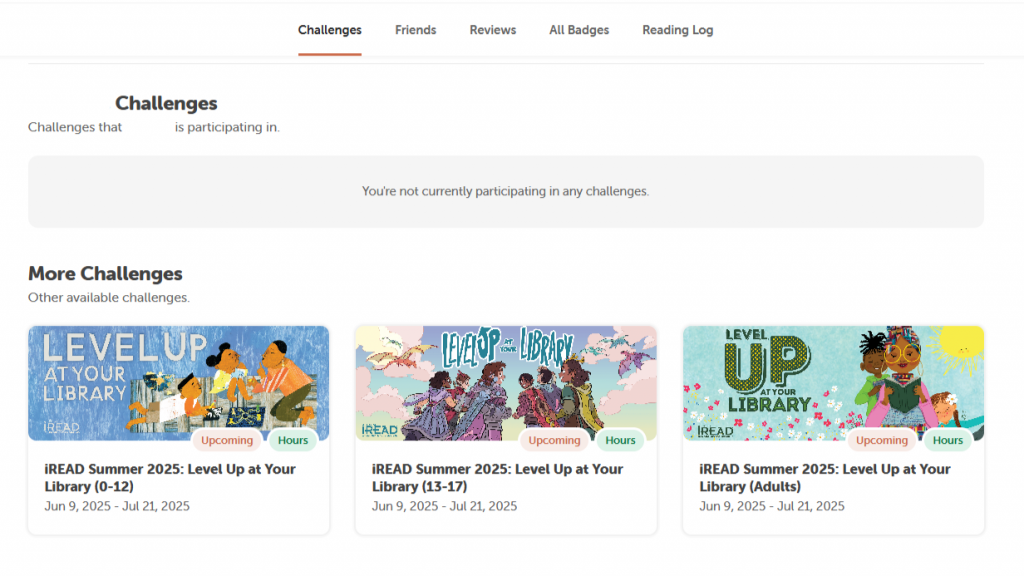
- Under the Challenges tab, join the Summer Reading Program Challenge that fits your grade/age level.
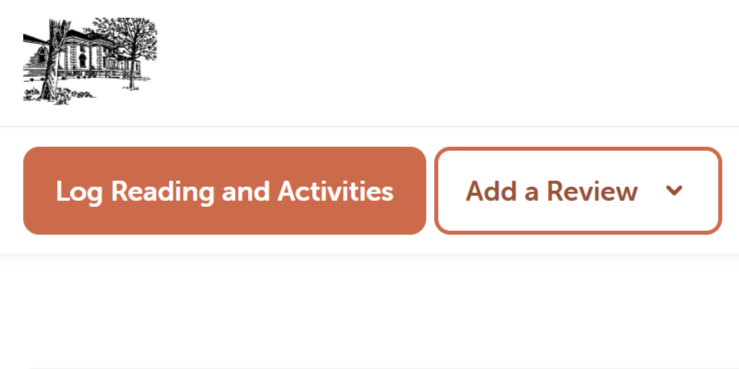
- Being tracking your reading by selecting on Log Reading and Activities at the top-left of the page.
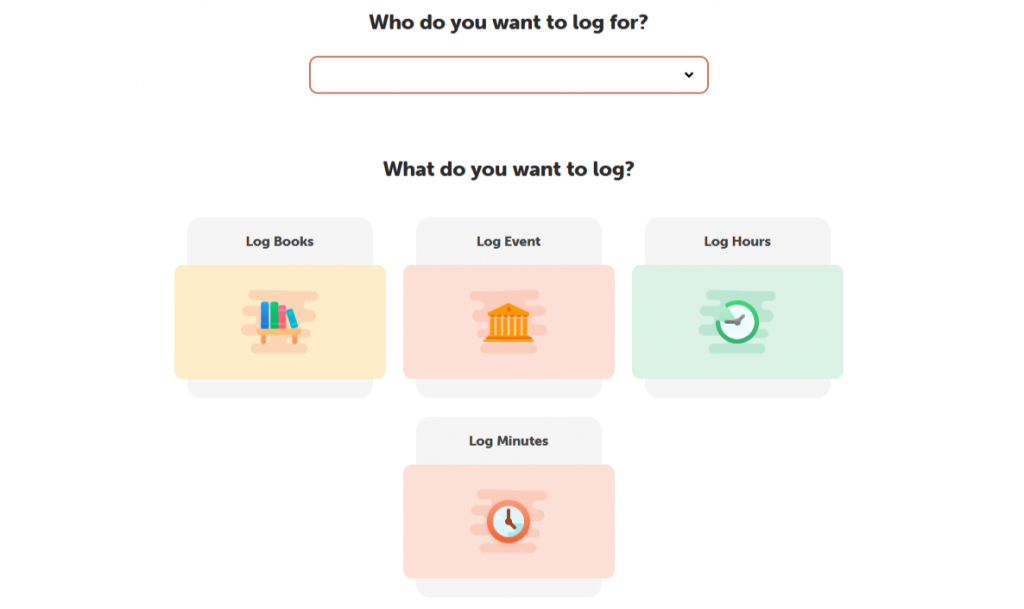
- Select the individual account you are logging for, then choose the appropriate logging option and fill out the information on the form.
- To add a book review, select Add a Review at the top-left of the page then choose Write a Review to begin your review.
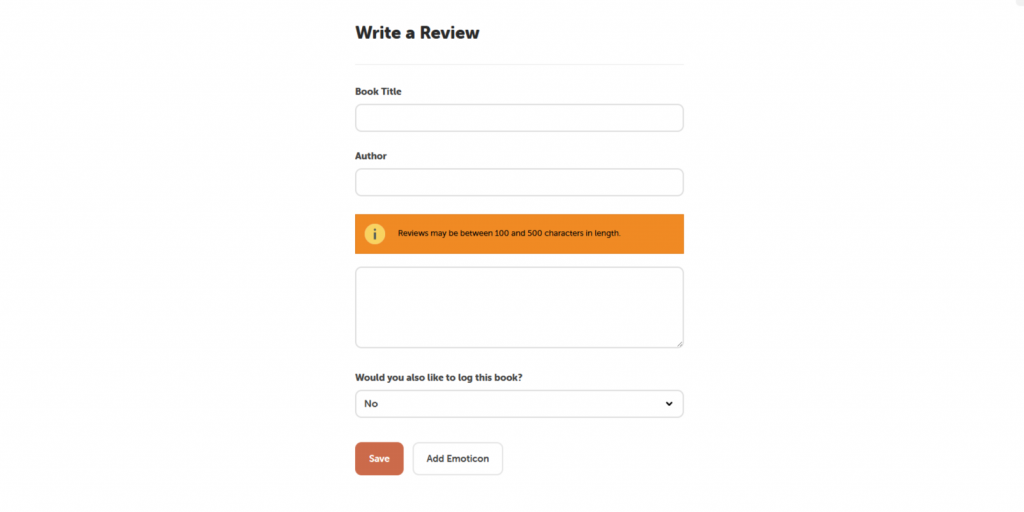
Note: Logging in using the web application will only log for a single program/user at a time.
Log Reading
- After logging into your Beanstack account, select Log Reading and Activities in the top left of the window.
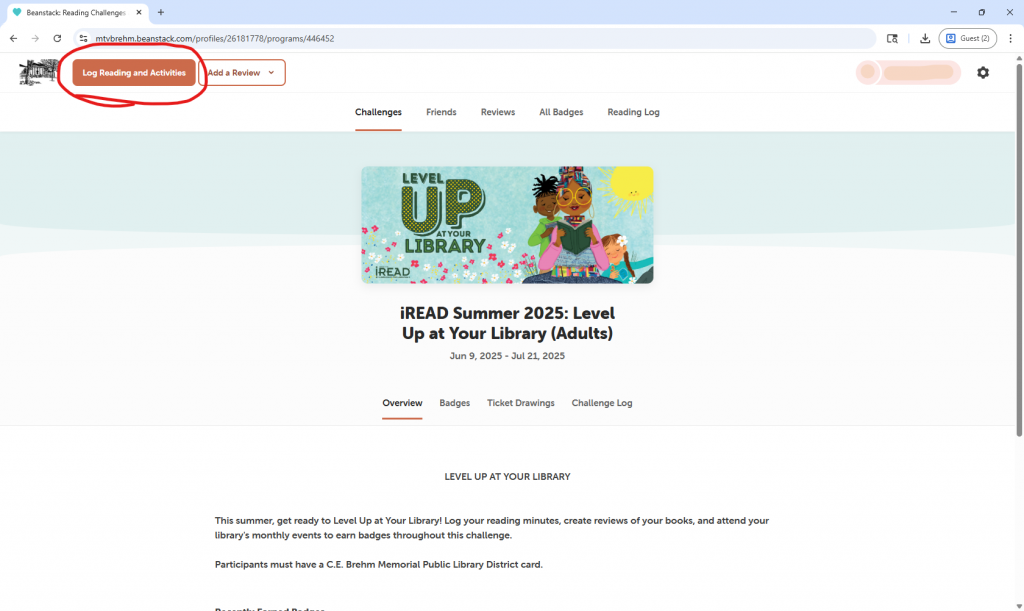
- Select your preferred reading log: Start a Reading Timer or Log Minutes.
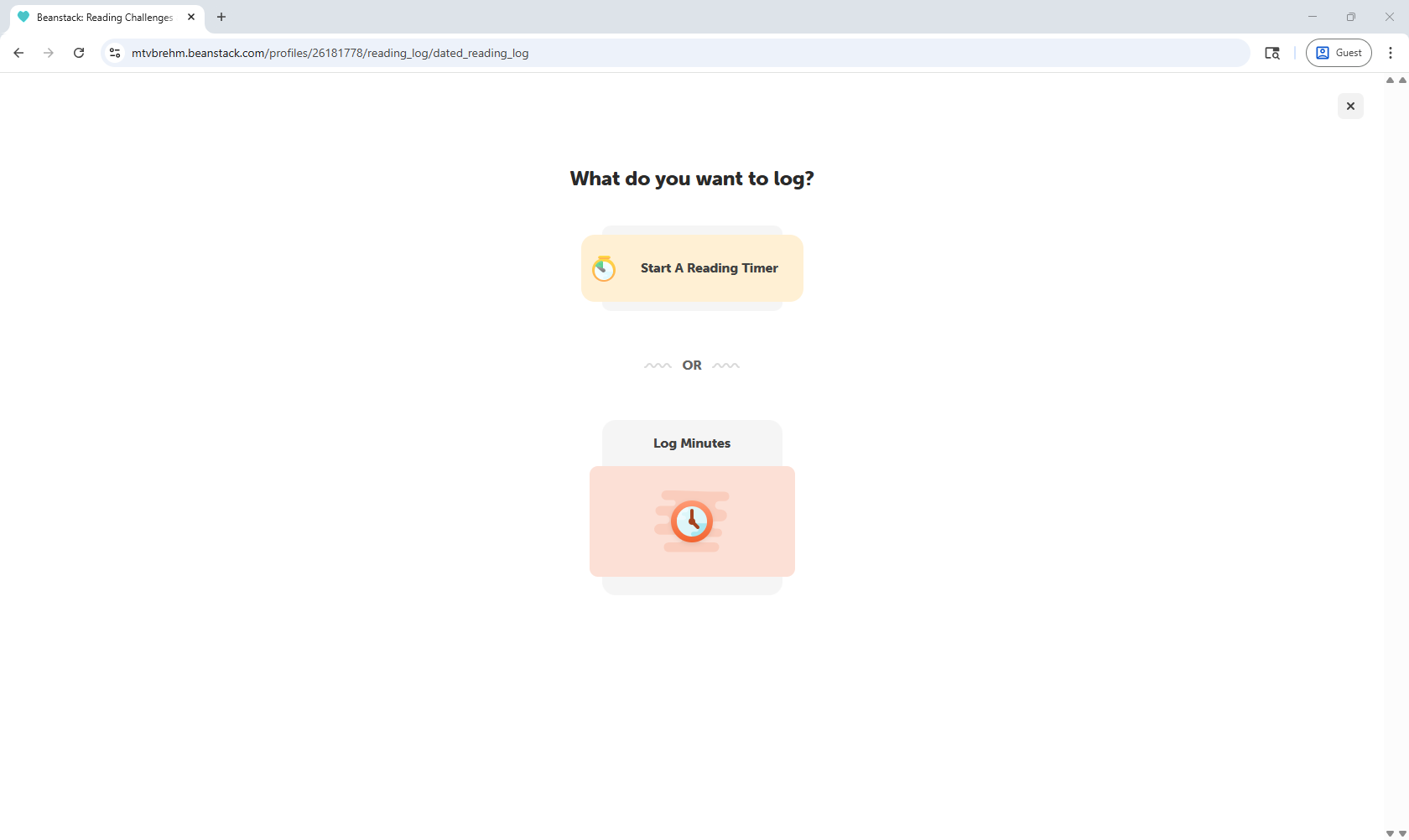
Start a Reading Timer
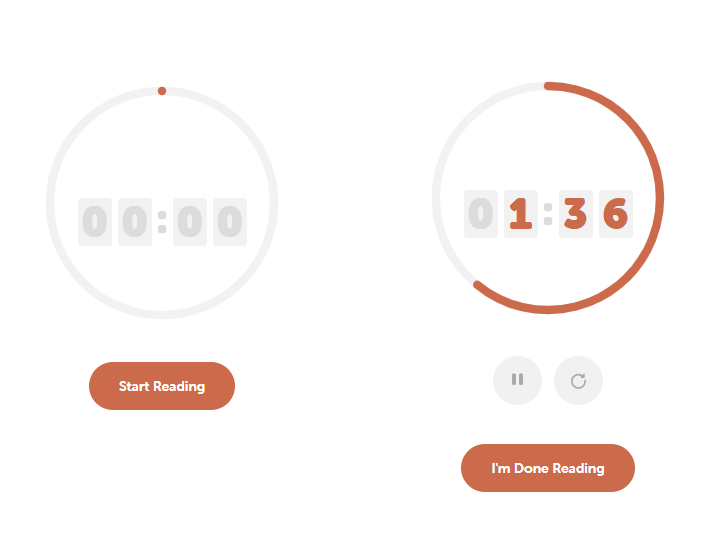
This option will allow you to track your reading in real time.
- Select Start Reading to begin tracking your reading; select I’m Done Reading when you are ready to log your reading for that session.
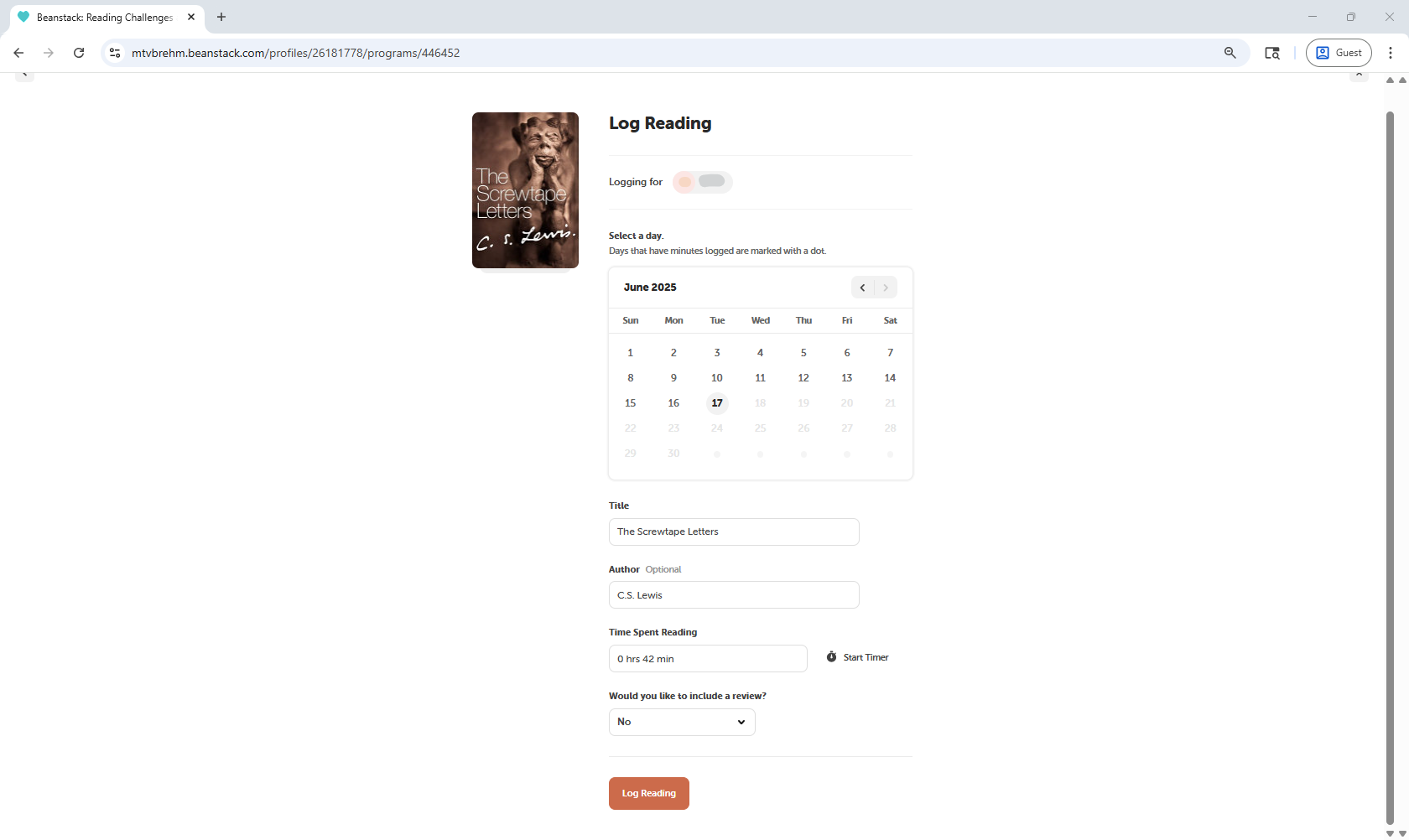
- Select the appropriate date of your reading log; enter the title and author of the work you are a logging (Beanstack may suggest a title depending on what you type); verify the ‘Time Spent Reading’; and select Log Reading.
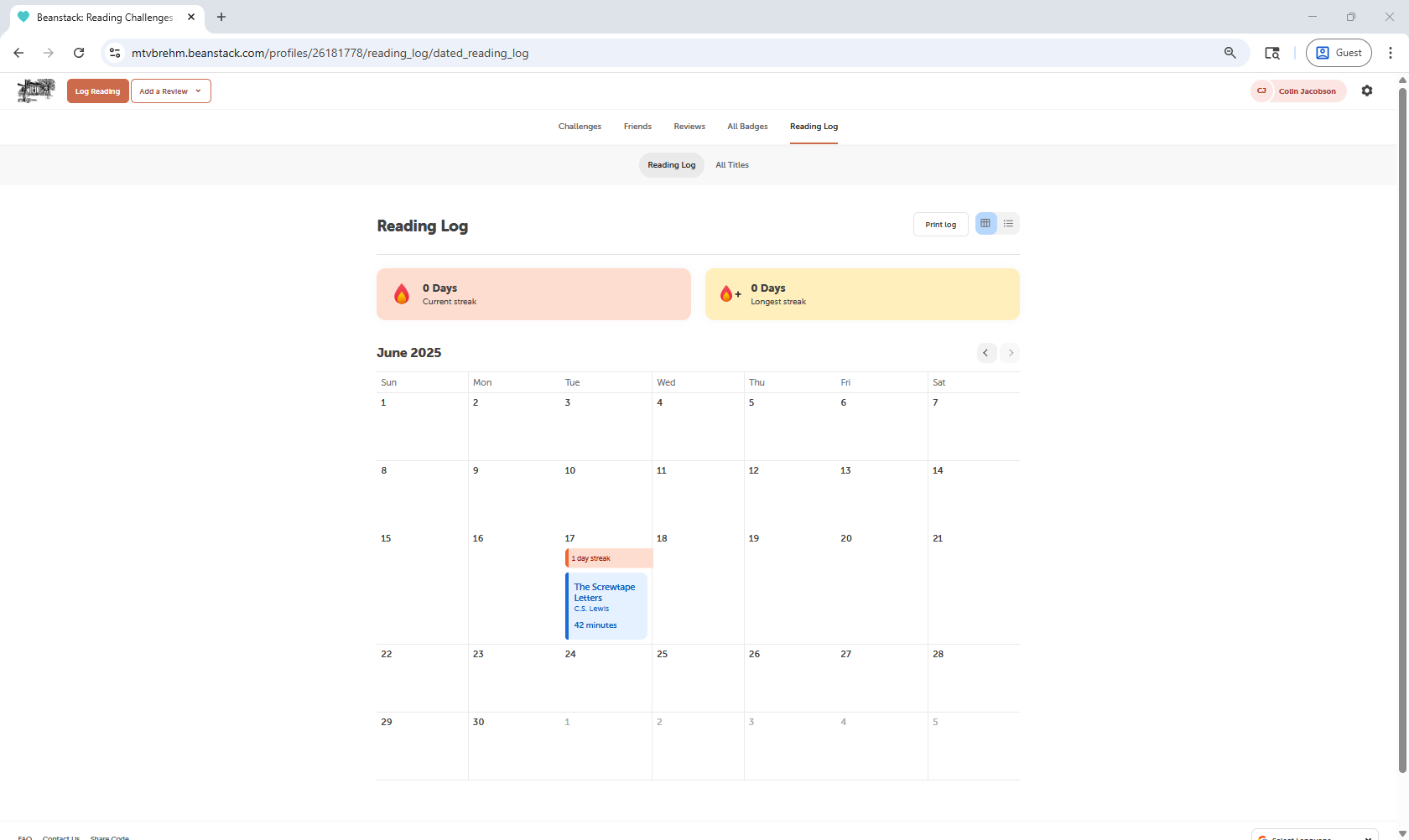
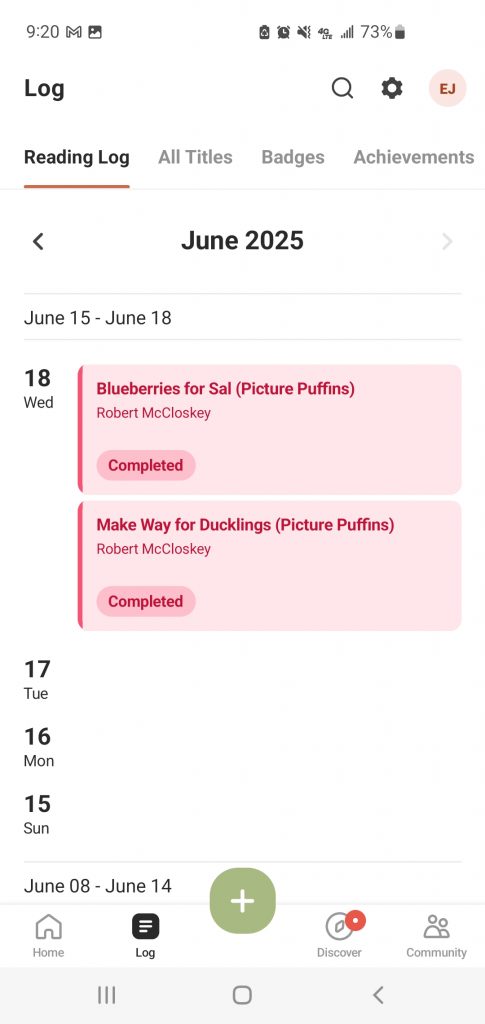
- After logging your reading session into Beanstack, you can track your previous logs under the Reading Log tab.
Log Minutes
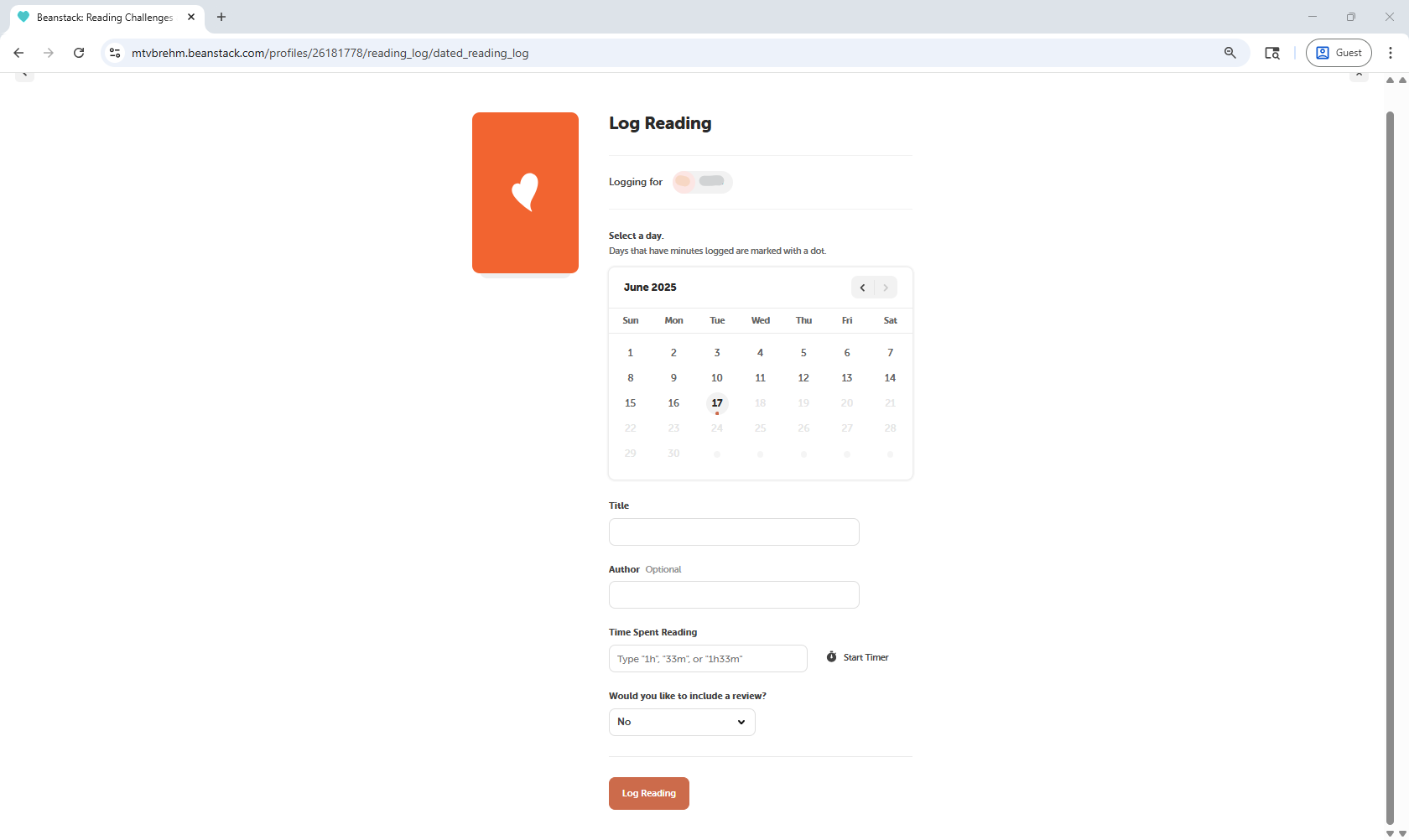
This option will skip the timer, allowing you to log your title, author, and time spent reading directly.
Beanstack Tracker Instructions
Challenge Registration
- Select Find Your School or Library.
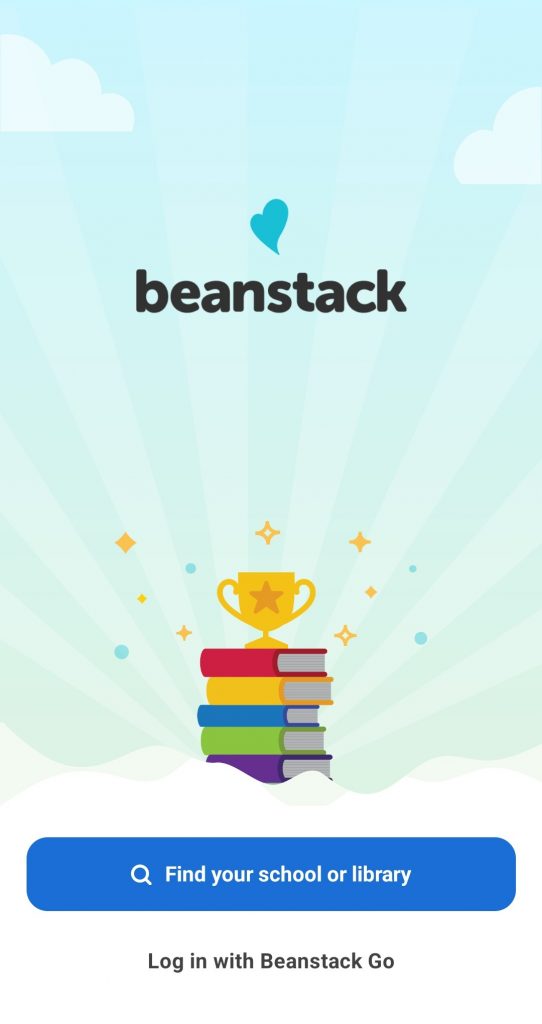
- Search for “Brehm Library” in the search bar.
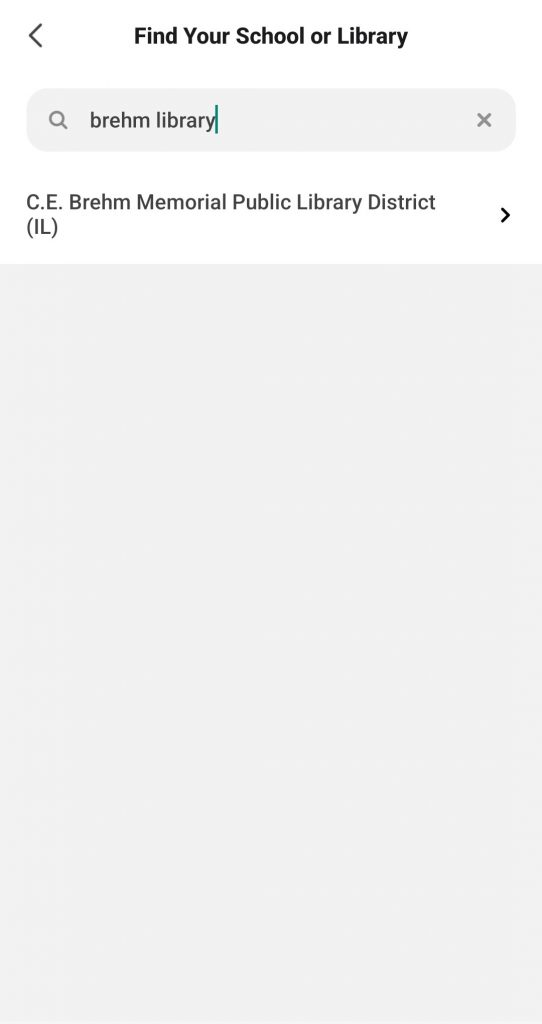
- Select Sign Up! to begin your registration.
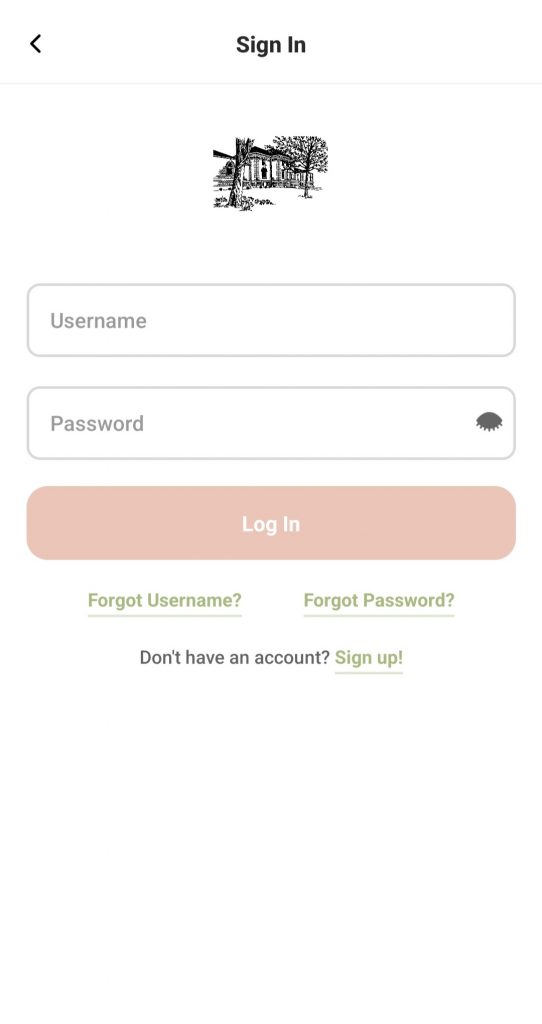
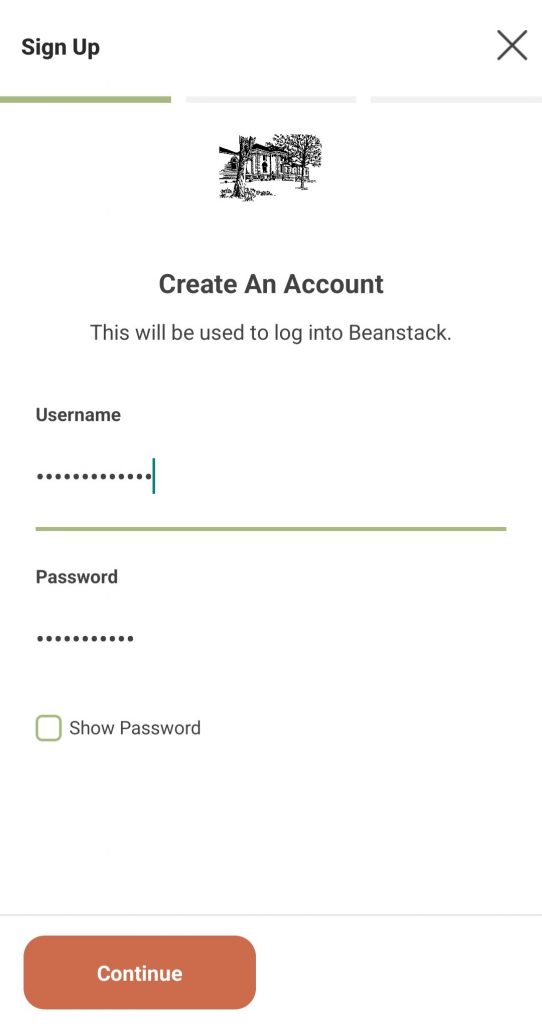
- Enter a Username and Password for your Beanstack account; follow the proceeding prompts to complete your registration.
- Select Add a Reader to add additional family members; follow the proceeding prompts to register them as well.
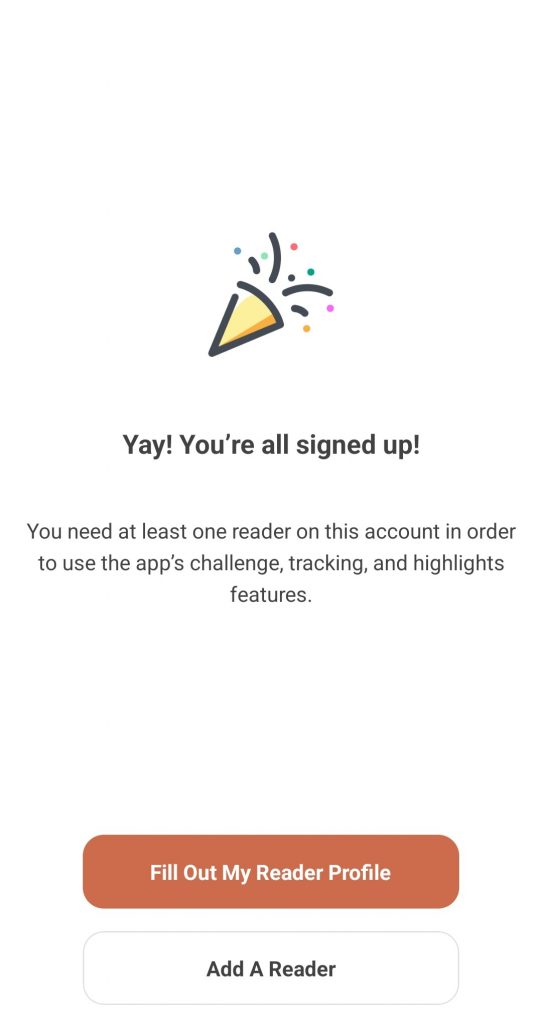
- Select See Available Challenges and register for the Summer Reading Program Challenge that fits your grade/age level.
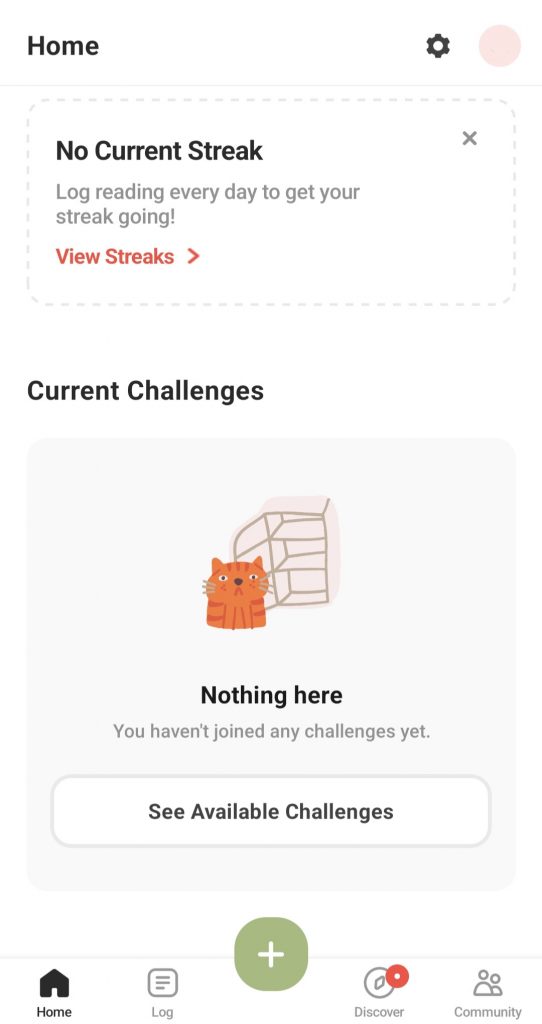
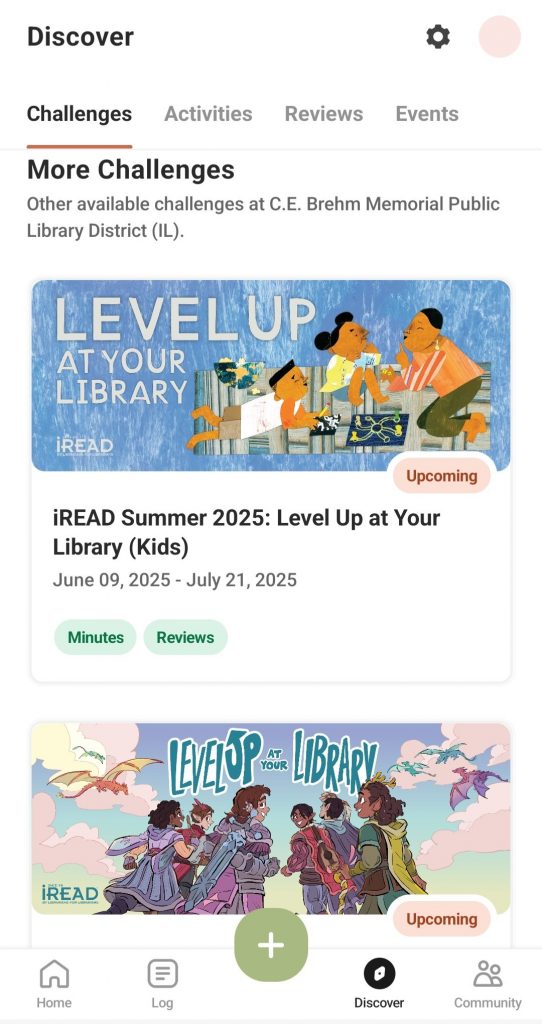
- After joining the appropriate challenge, select the + (‘Plus’ icon) to begin logging your reading and activities.
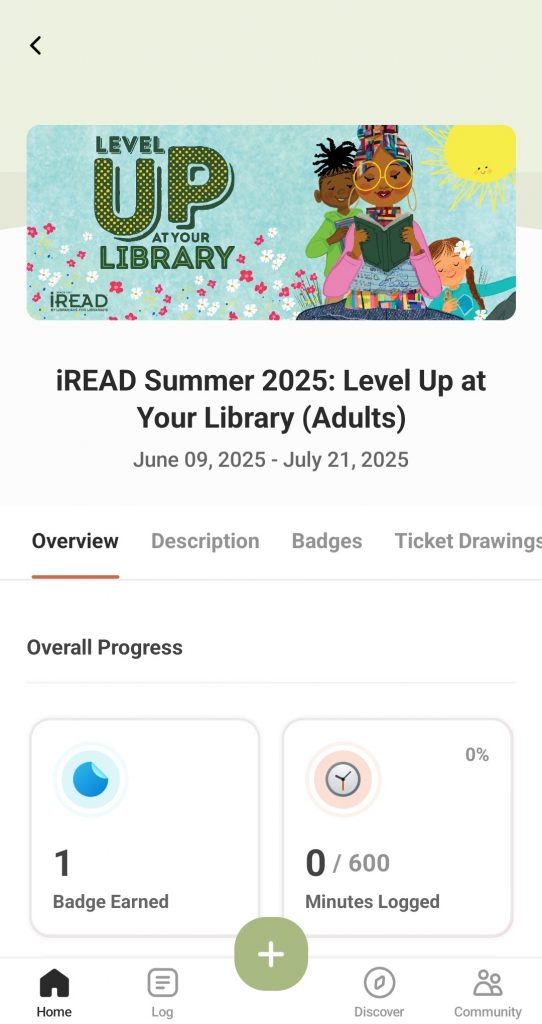
Note: The Beanstack Tracker App will sync all of your programs at once. Log a book or an activity and the app will begin tracking your days automatically.
Log Reading
- After logging into your Beanstack account, select the + (plus) on the bottom of the screen, then select Reading.
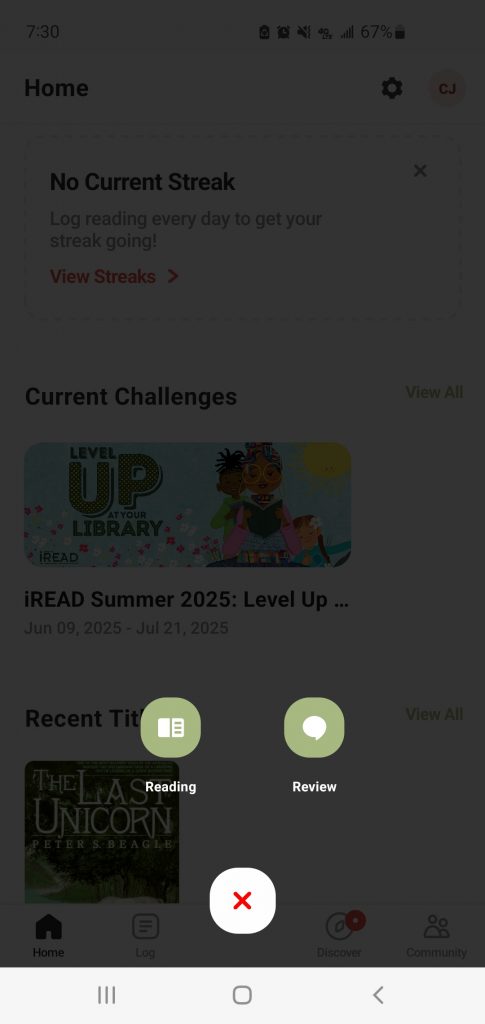
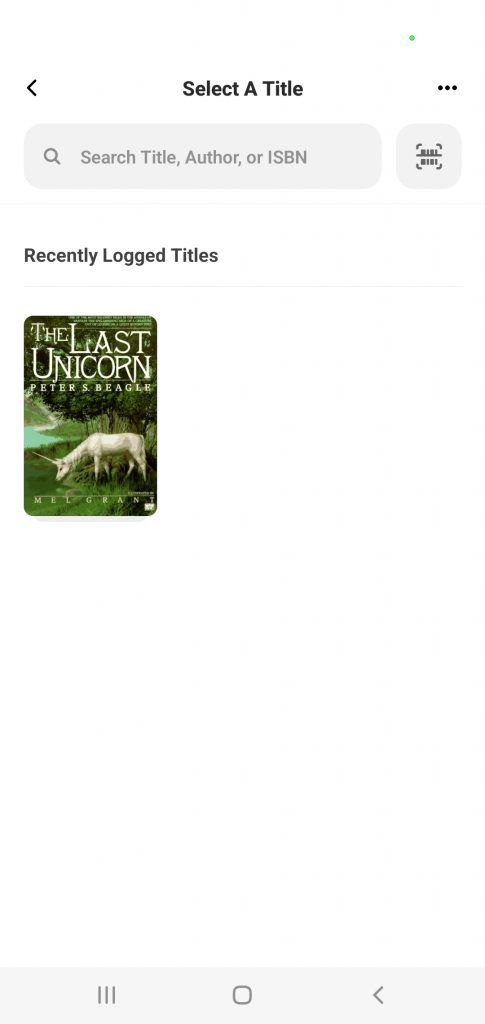
- Choose your appropriate reader, then select your title by either searching for it in the Search Title, Author, or ISBN search bar or by scanning the title’s barcode with the barcode scanner (you will need to give the app permission to use your camera).
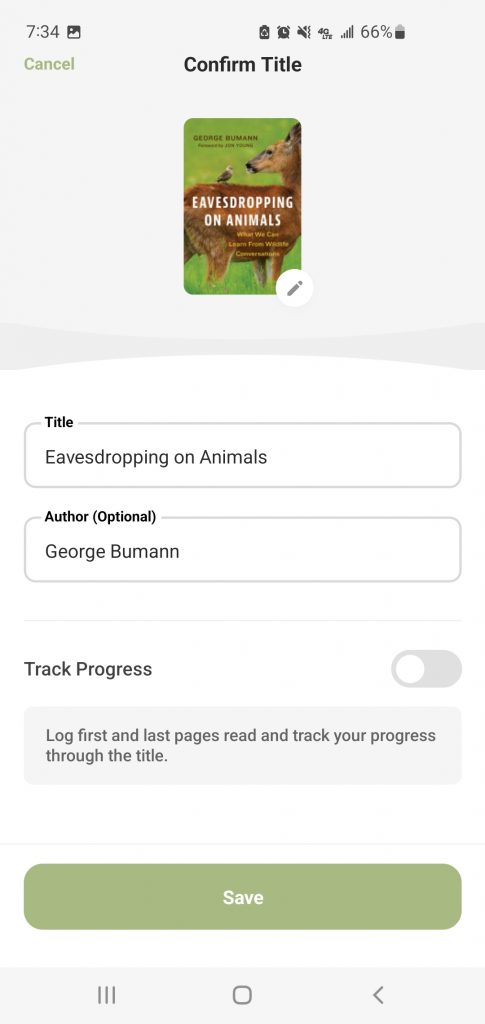
- Verify the title’s information (Title and Author), select whether you would like to Track Progress for this title (which will ask you to input your starting and ending pages of your reading session), and then press Save.
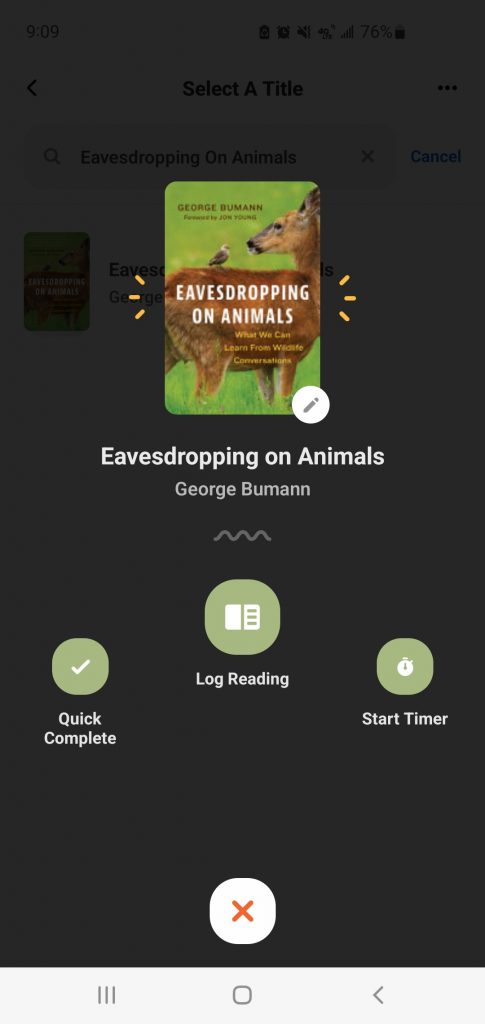
- Select the appropriate log type from the list: Quick Complete, Log Reading, or Start Timer.
Log Reading
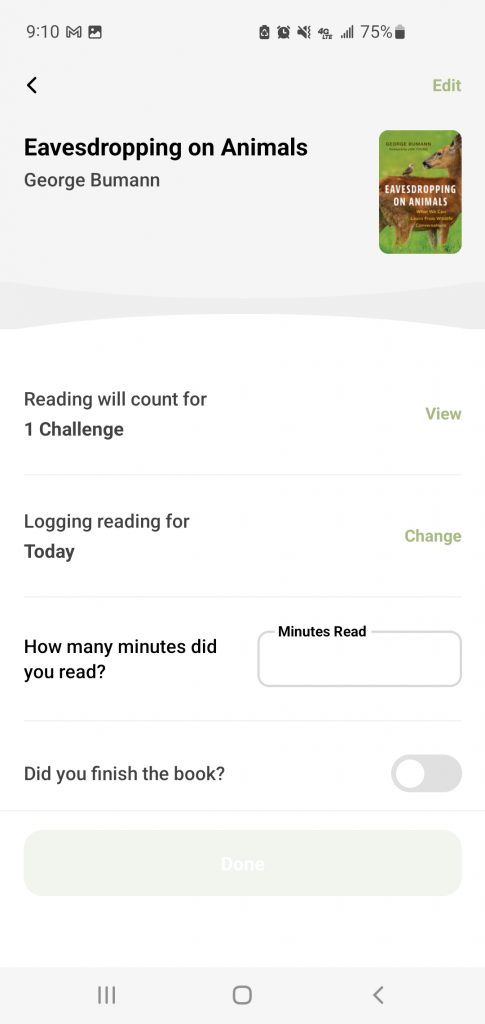
Verify the challenge this log will apply to, choose the day you are logging the reading for, type how many minutes you spend reading (and if you finished the book), and confirm if you finished the book (optional). Selecting Done will log your reading session!
Quick Complete
Depending upon the requirements of the Beanstack challenge you are enrolled in, this feature may not be recommended.
- As the Summer Reading Program challenges track completion by minutes, this feature is not recommended; Quick Complete will immediately log the book as ‘completed’ without logging the accumulated minutes spent reading it.
- As the “1000 Books Before Kindergarten” challenge tracks completion by total number of books, Quick Complete can be used to instantly log completed books. Simply select Quick Complete and Beanstack will immediately add your title to your reading log.
Start Timer
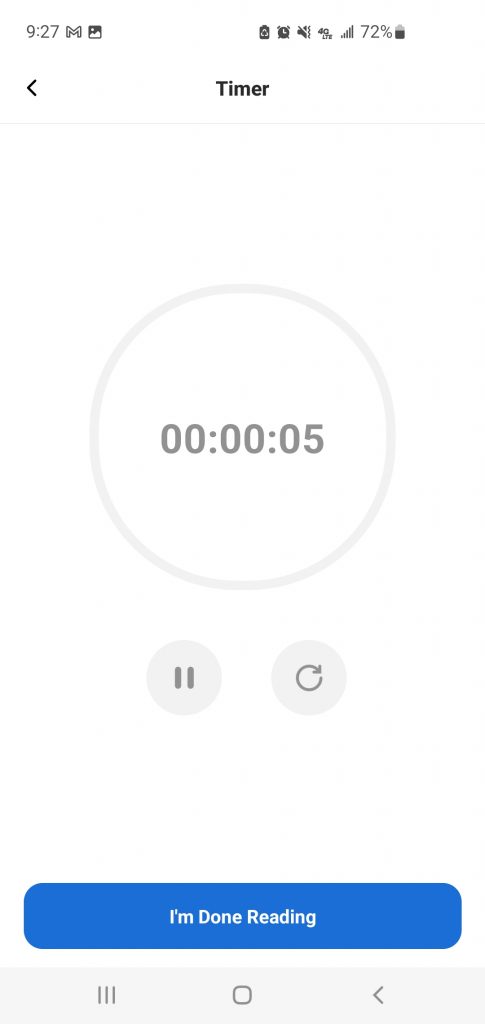
Similar to the web application’s Start a Reading Timer, this will start a timer for you to track your reading progress (with which you can also ‘pause’ and ‘reset’ as needed). Select I’m Done Reading to begin verifying your book’s information like under the Log Reading option, then select Done to log your reading.